
GreenRoad AI
v1.0.0 PaidAn AI engineering assistant inside AutoCAD and Civil 3D that works to your company's standards — and asks before it changes a drawing.
Works with
- AutoCAD 2025–2027
- Civil 3D 2025–2027

A general AI chat does not know how your office designs a canal, which layers you use or which slopes you allow. GreenRoad AI does. Write a procedure down once as a company skill, and the assistant follows it on every job: it inspects the drawing first, asks your engineer for the values it needs, and shows every change for approval before anything runs.
Your standards, written once — followed every time
A skill captures how your office does a job: what to ask, the steps, and your layers, styles, dimensions, slopes and checks. It can carry ready-made scripts and template drawings, so the same step is done the same way on every project. Keep personal skills on each PC and share a company library from a network folder marked read-only — the assistant uses it but never changes it. Lock a skill as a company standard and it overrides the assistant's own defaults whenever it applies.
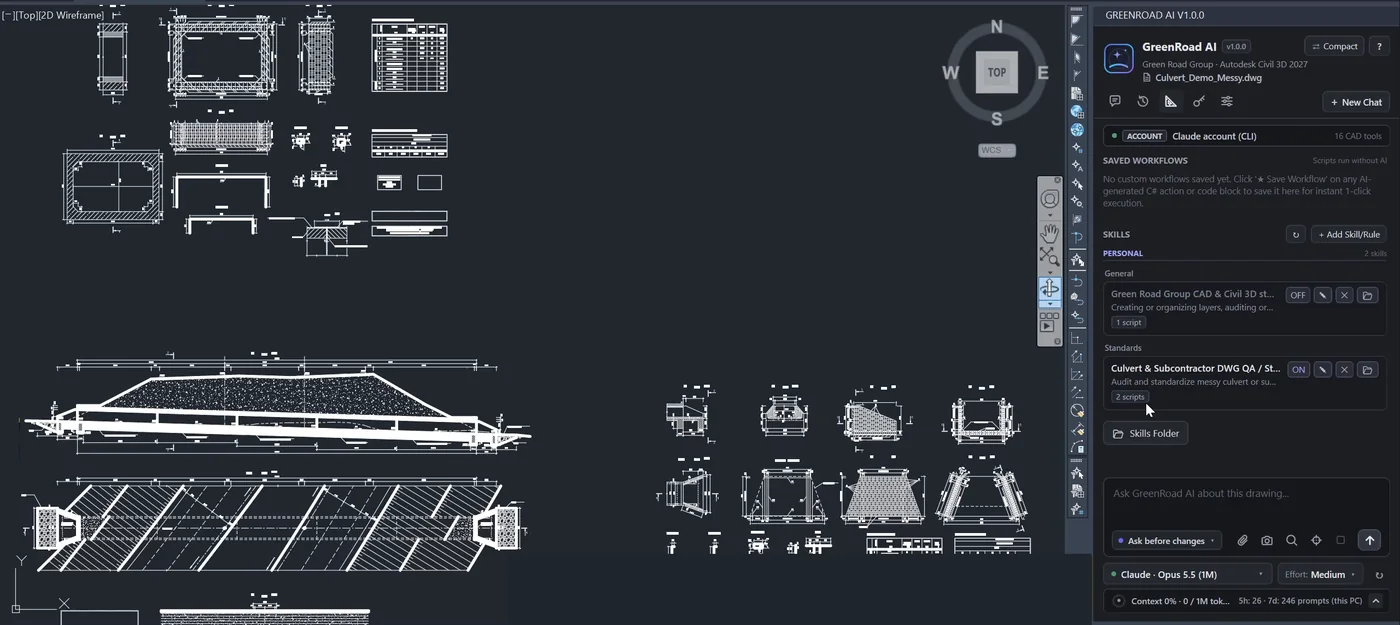
It asks your engineers before it acts
When a task leaves design values open — widths, slopes, sampling intervals, styles, assemblies — the assistant does not guess. It inspects the drawing, shows what exists, what is missing and how many stages the work takes, and asks one to four multiple-choice questions with the recommended option first. The engineer confirms each stage, or pauses to adjust the drawing first.
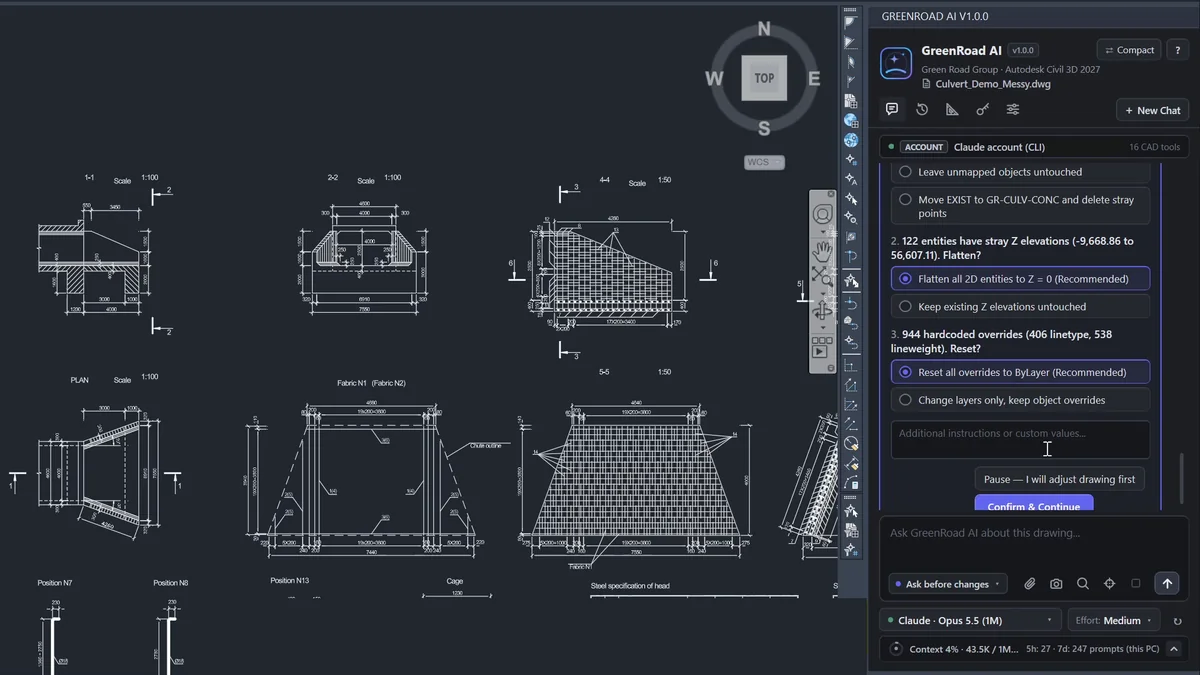
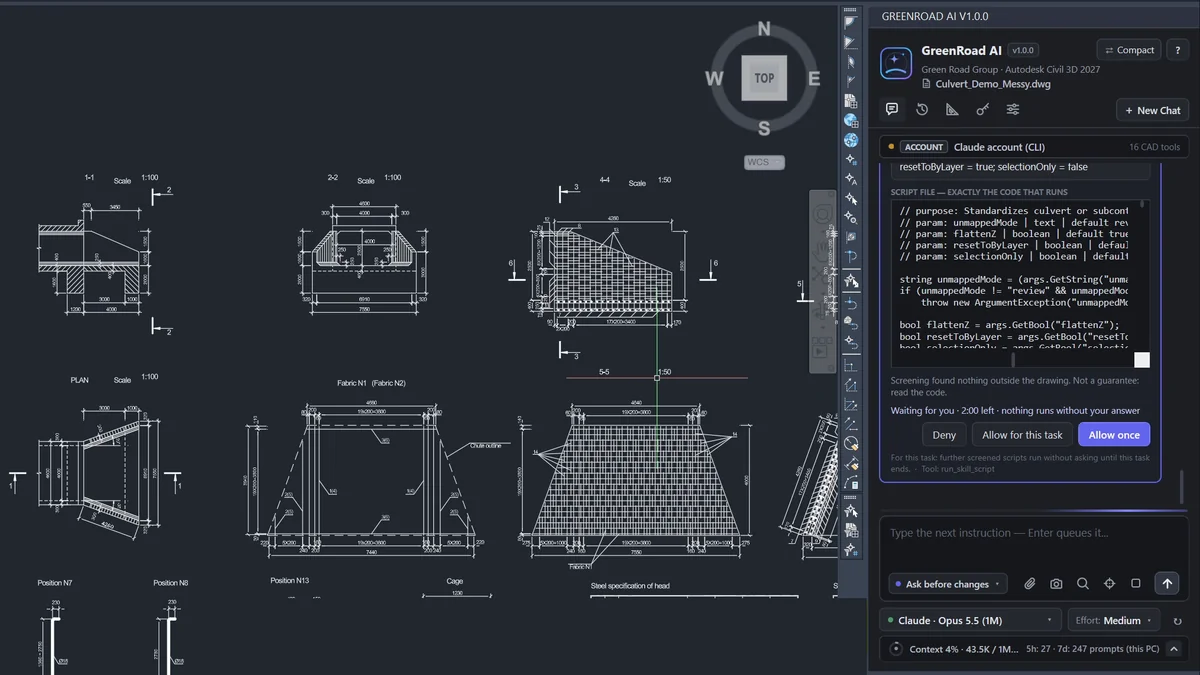
Nothing changes without approval
Choose how much the assistant may do. In the default mode every change waits on an approval card that says in plain words what will happen. Read-only mode lets it inspect, measure and explain without touching anything. Even in Auto mode, deleting objects and any script that reaches outside the drawing are confirmed every time.
Review drawings without risk
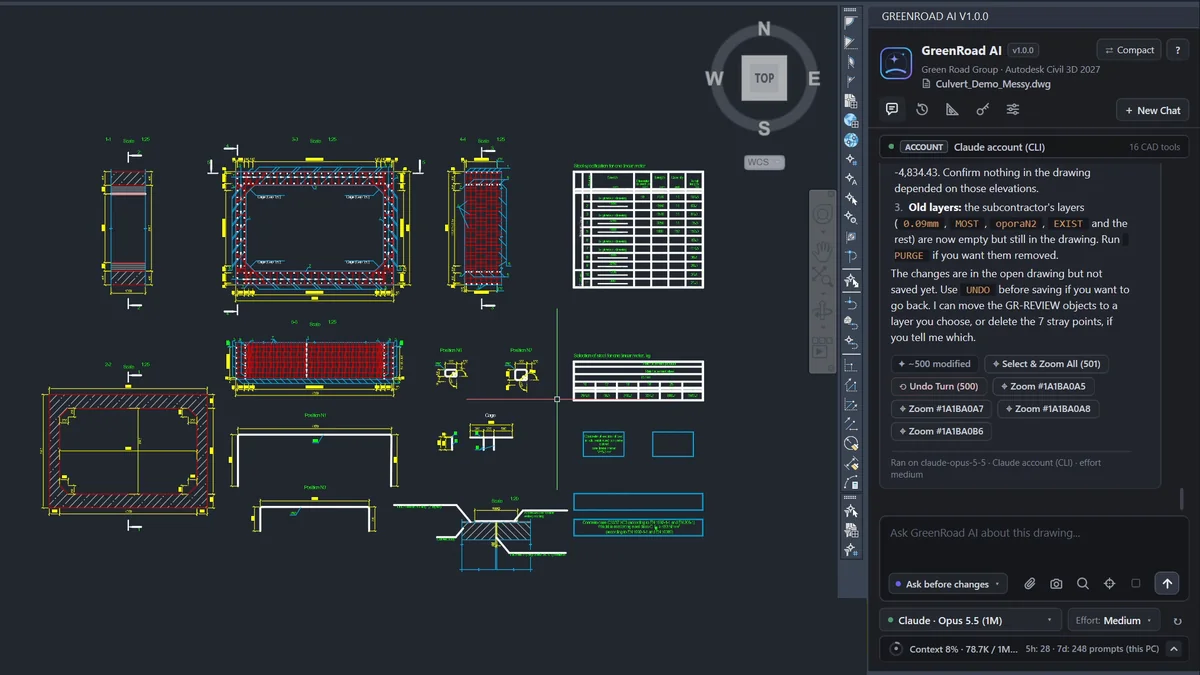
Right-click a selection for an instant engineering summary — object types, layers, key geometry and anything inconsistent — without modifying the drawing. The assistant can capture the drawing window, so the AI sees what your engineer sees, and you can attach up to ten images or PDFs to a question.
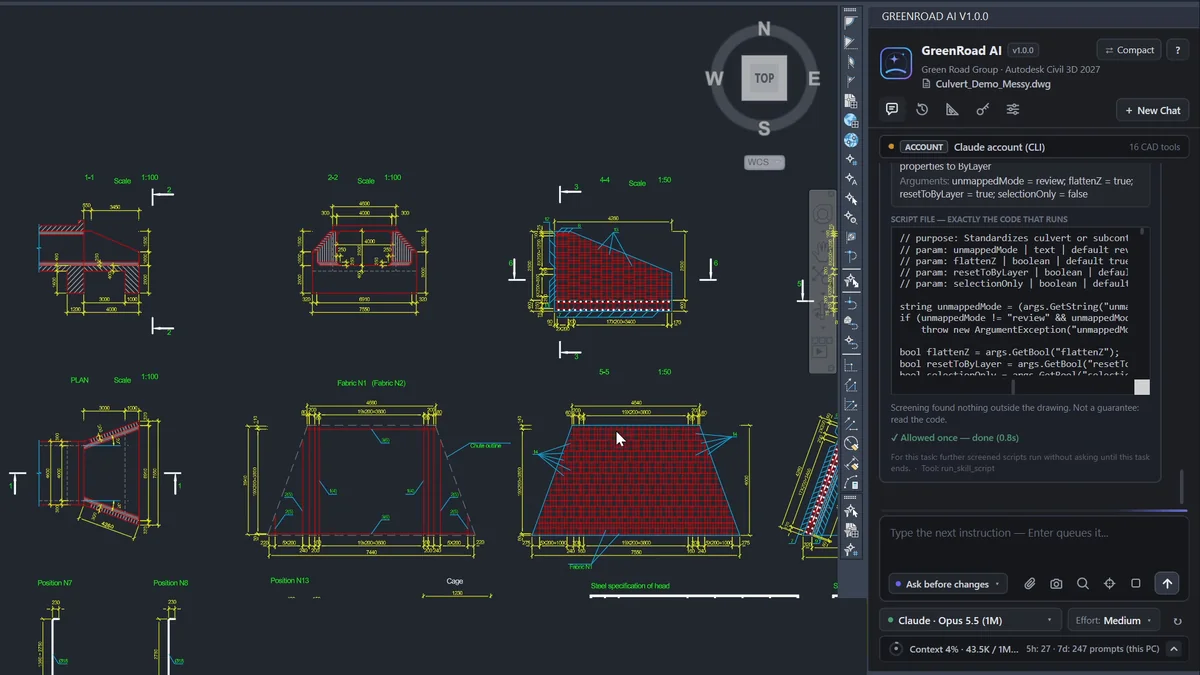
Undo any AI turn
Every assistant turn that touches the drawing can be rolled back: the objects it created are erased, and the layer, colour, linetype and geometry of the objects it modified are restored. Select & Zoom shows everything a turn created or changed, so it can be checked before anyone decides.
Your AI provider, your key, your bill
Connect your own Anthropic, OpenAI or Google Gemini API key, or sign in with an existing Claude or ChatGPT account. Usage is billed by the provider to your account; keys are stored encrypted for each Windows user. Drawing files are not uploaded — the drawing information the assistant reads goes to the provider you choose, under your account and that provider's terms. Every answer states which model actually ran.
Requirements
CAD platform AutoCAD or Civil 3D 2025, 2026 or 2027
Operating system Windows, 64-bit
AI access An API key from Anthropic, OpenAI or Google Gemini — or a Claude or ChatGPT account
Your company skill library, built with you
GreenRoad AI is as good as the standards you give it. Green Road Group works with your team to turn your procedures, layer and style standards, template drawings and repeated tasks into a skill library that every engineer's assistant follows.
- Standards first. Your rules are written down once, locked where they must not change, and shared from one read-only company folder.
- Engineers decide. The assistant asks for open values and waits for approval before it changes a drawing.
- Your data, your provider. You choose the AI provider and pay it directly, under your own account.
Pricing depends on your team and the skills we build together. Request a demo and we will show GreenRoad AI on a drawing of your own type of work.
Pricing is tailored to your team and the company skills we build with you.
Frequently asked questions
Is our drawing uploaded to the cloud?
Drawing files are not sent. The drawing information the assistant reads, your messages and any images or PDFs you attach go to the AI provider you choose, under your own account or API key and that provider's terms.
Which AI providers does it work with?
Anthropic (Claude), OpenAI (ChatGPT) and Google Gemini — with your own API key, or with a Claude or ChatGPT account sign-in. The provider bills usage to your account.
Can the assistant change a drawing without asking?
Not in the default mode: every change waits for approval. Read-only mode changes nothing. In Auto mode, deleting objects and scripts that reach outside the drawing are still confirmed every time.
How do we keep one standard across the whole team?
Share the company skill library from a network folder added as read-only, and lock the skills that are company standards. Protect that folder with Windows permissions so only the people who maintain the standards can change it.
What exactly does Undo cover?
Drawing objects in the current space that an AI turn created or modified. Items imported from a template — layers, blocks, styles, linetypes, Civil 3D styles — stay; remove them with AutoCAD's own UNDO or PURGE.
Which AutoCAD and Civil 3D versions are supported?
AutoCAD and Civil 3D 2025, 2026 and 2027 on 64-bit Windows.