Layout Pro: Plan Production from Model Space Smart Blocks
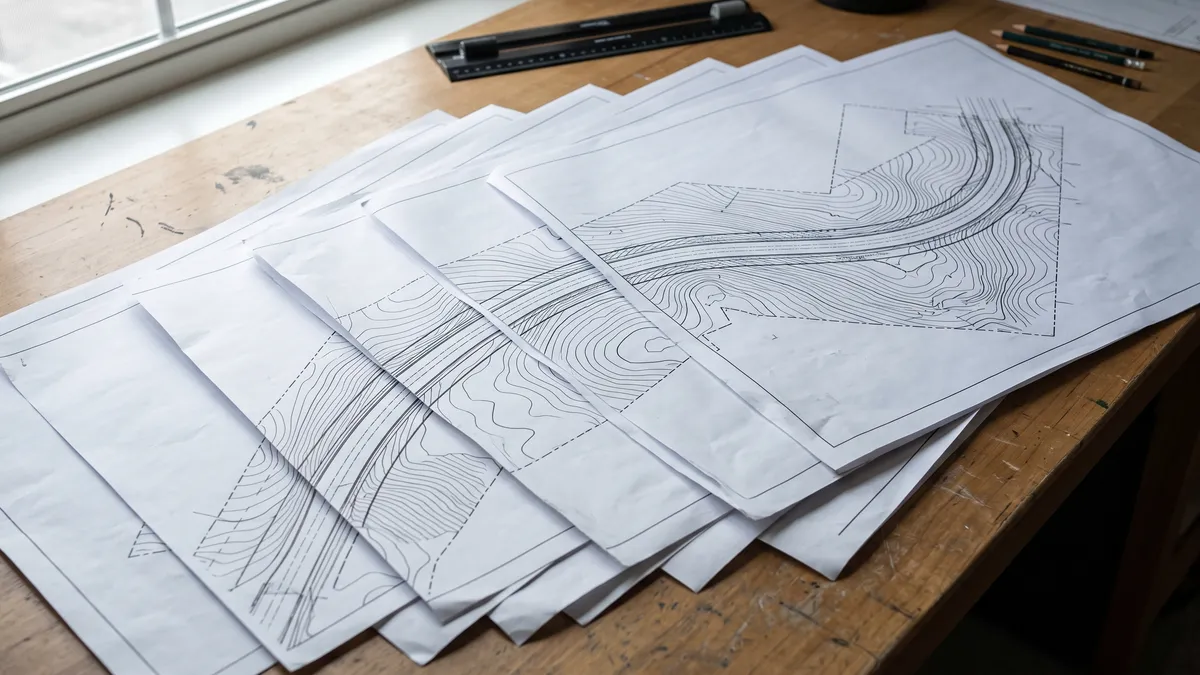
Every plan production workflow has the same weak point: the sheet set is decided in Model Space, but it lives in Paper Space, and nothing connects the two. You place frames, you generate layouts, and from that moment the two halves drift apart. The alignment shifts by twelve metres, and now every affected sheet has to be found, opened, and re-panned by hand — or the whole set is regenerated, destroying every annotation anyone added since.
Layout Pro closes that gap. It is a Plan Production suite for AutoCAD, Civil 3D and ZWCAD built around one idea: the sheet set is a set of Smart Blocks that live in Model Space, and the Paper Space sheets stay linked to them.
Smart Blocks: The Sheet Set as Model Space Geometry
A Smart Block is a physical, unexplodable representation of a sheet sitting over your model. Inserting an assembly drops a Master Frame — the sheet extent — plus one Viewport Frame per page, on the non-plottable GR_Viewport_Boundaries layer.
From there you work the way you already think: move them, copy them, rotate them along the corridor, scale them. What you see arranged over the model is the sheet set. The only rule is that you never explode them — exploding severs the link between the Model Space frame and its Paper Space sheet.
Assemblies: Templates That Travel With the Drawing
An assembly is a reusable set of sheet templates. In the Assembly Manager (GR_Assemblies) you name it, source its layouts either from the current drawing or from an external DWT/DWG standard template, and add the pages — each page mapping to one Paper Space layout from that source.
The detail that matters organisationally: assemblies are stored in the drawing's Named Object Dictionary, so they travel inside the DWG. Send the file to a colleague or a subconsultant and your sheet structure goes with it. There is no separate configuration file to lose, and no "works on my machine" setup step.
Roles, Scales and Pages
The Role Palette (GR_Palette) is modeless, so it stays docked while you pan and zoom. Select a viewport Smart Block and its current mapping loads; set its viewport role, its scale (paper units to drawing units, or a custom scale), and its page number. Per-viewport toggles cover Repeat on all pages, Show hatching and Show label.
Spatial Renumber (GR_RenumberLayouts) then assigns page numbers by physical position — LeftToRight, RightToLeft, TopToBottom, BottomToTop or SelectionOrder — from a chosen starting number, refreshing each block's label to match. The sheet set comes out in chainage order because the frames are in chainage order, not because someone typed the numbers correctly.
Generate: The Engine
Generate Layouts (GR_GenerateLayouts) reads the selected Smart Blocks, duplicates the referenced templates, and maps Model Space coordinates into the Paper Space viewports — handling view twist, scale, and non-rectangular viewports: polygonal, circular, and L-shaped.
That last capability is the one worth pausing on. Interchanges, junctions and site boundaries do not fit inside rectangles, and hand-clipping a viewport to an odd shape and then keeping it aligned through revisions is one of the genuinely unpleasant jobs in drafting. Layout Pro treats a non-rectangular frame as a first-class case rather than an exception.
Layouts are built at the database level, so there is no tab-switching flicker while hundreds of sheets are created, and the command line reports what happened: sheets created, viewports synced, and any warnings.
Sync: What Makes It Pro
This is the difference between Layout Pro and every generate-once tool, including our own free Batch Layout Generator.
When the project shifts, you move or rescale the Smart Blocks and run Sync Layouts (GR_SyncLayouts). Sync re-applies the block geometry to the existing sheet in place rather than recreating it — so the manual annotations, the leader notes, the viewport overrides that someone added by hand over three weeks are all preserved.
After a project-wide shift, the [Entire] keyword scans and syncs every viewport Smart Block in Model Space in one pass, instead of window-selecting hundreds of frames by hand.
A sheet set that can absorb a design change without losing work is a different kind of deliverable from one that has to be rebuilt. That is the entire argument for the Pro version.
Managing and Issuing the Set
Layouts Manager (GR_LayoutManager) is a modeless grid of every layout in the drawing. Apply bulk transforms across hundreds of tabs — search and replace, prefix and suffix, removing characters from the start or end, or auto-numbering with a start value and increment — reorder tabs, and mark unwanted layouts for deletion. A Live Preview column shows the resulting names before anything is committed.
Export Layouts (GR_EXPORTLAYOUT) writes selected layouts out as individual standalone DWGs for client submission or coordination, using the same bulk-naming tools, with a progress bar over the batch.
Standards Control
Global Settings (GR_Settings) governs how Smart Blocks are authored and rendered: the label's font, height and colour and which fields it shows (role, page number, page name, scale, repeat and hatch tags) with a live preview; the Viewport Frame and Master Frame colour, lineweight, linetype and linetype scale; and the hatch pattern, colour, scale and transparency. Settings persist to %AppData%\BatchLayoutGeneratorPro\settings.json and apply to every Smart Block created afterwards.
The ribbon's icon theme is a persisted preference with five vector styles — TwoTone (default), FlatLine, Duotone, SolidGlyph and Blueprint — switchable live from the Management panel or the GR_RibbonStyle command, with no restart.
Platforms and Loading
Layout Pro runs on AutoCAD, Civil 3D and ZWCAD, shipping as three builds — .NET Framework 4.8, .NET 8 and .NET 10 — covering AutoCAD and Civil 3D releases from 2021 through 2027. Notably, the suite uses no Civil 3D-specific API, so it works identically on plain AutoCAD.
Every tool has both a ribbon button on the Layout Pro tab and a typed command. Press F1 while hovering a ribbon button, in AutoCAD or in ZWCAD, to jump straight to that command's help section.
If the ribbon tab ever fails to appear, GR_RibbonDiag is a typed-only support command that switches the ribbon builder to verbose logging and writes an immediate diagnostic snapshot to a log file it names on the command line. A healthy session writes nothing at all.
Licensing
You can try every feature free before buying — no licence key, no email address, nothing to fill in. Open About → License and click Start free trial; the tab then shows the exact end date and counts down the days remaining. One trial per computer, permanently: reinstalling, updating or clearing settings does not reset it, and a licence key can be entered at any point to convert without losing anything.
One licence activates one computer, and on that computer it covers every supported CAD application — AutoCAD, Civil 3D and ZWCAD — so no separate licence per program is needed. The subscription is annual and renews until cancelled. Reinstalling, updating, or upgrading your CAD version on the same computer never needs the key again and never costs anything. To move machines, deactivate the old one first, then activate the new one with the same key.
Bought through the Autodesk App Store? That edition is licensed by Autodesk and needs no key at all — Autodesk handles trials for store purchases. Only the edition downloaded from greenroadgroup.com.ge uses a licence key.
And if the trial or subscription ends: the plugin's features stop working, but your drawings are never altered, locked or damaged. Everything already drawn opens and edits normally, in any CAD application, with or without the plugin installed. Sheets you generated stay exactly as they are. That is worth stating plainly, because it is the question every CAD manager asks before approving a subscription tool.
Where to Start
The workflow is short once the assembly exists: Assembly Manager → Insert Assembly → assign roles and scales with the Role Palette → Spatial Renumber → Generate Layouts → Sync after edits → Layouts Manager and Export to finish.
If your work does not need the Model-to-Paper link and you only need sheets generated once from frames you already have, the free Batch Layout Generator covers that case and always will. Layout Pro is for the projects where the design keeps moving after the sheets are cut.